
Folders and labels
- Reading
- 5 mins
- Category
- Search and organize emails
Folders and labels help keep your Proton Mail inbox organized. In this article we explain how these features work, how to use the default folders available in Proton Mail, and how to create custom folders, sub-folders, and labels.
Once you’ve created folders and labels, you can use filters to automatically assign incoming messages into folders and add labels to them. Learn more about filters
In this article
How folders and labels work
Folders are where your messages get stored, and labels are a way of tagging your messages to make them easier to search and filter. Messages keep their labels as you move them between folders, unless you move them to Trash.
- With Proton Free, you can create up to three folders and three labels.
- With a paid Proton Mail plan, you get unlimited folders and labels.
Tip: You can make your folder and label system even more powerful by using filters to automate your inbox. Learn more about how to use filters.
Folders
Your Proton Mail messages are sorted into eight folders by default:
| Inbox | New and unsorted messages. This is the default folder you see when you open Proton Mail. |
| Drafts | Composed messages that haven’t been sent or deleted yet. |
| Sent | Messages you’ve sent successfully. |
| Starred* | Messages you mark as important by selecting the Star icon. |
| Archive | Messages you want to keep, but don’t want in your Inbox. |
| Spam | Unwanted or irrelevant messages. Suspected spam is sent directly to this folder. You can also set up custom spam filters. |
| Trash | Messages you’ve deleted from your inbox. |
| All mail** | This folder contains all the messages in your account, except those in Spam and Trash. |
*Starred messages appear in both the Starred folder and your Inbox.
**To include Spam and Trash in All mail, open your account settings and select Messages and composing. Go to Exclude Spam/Trash from All mail and toggle the switch off.
Move messages into folders
A message can only be stored in one folder (with the exception of Starred and All mail). When you move a message from your Inbox to a different folder, you’ll no longer see it in your Inbox.
- Check the message (or messages you want to move).
- Click the Move to icon in the top navigation bar.
- Select your preferred folder from the list.
- Click Apply to confirm.

Shortcuts
If you’re already viewing a message, you can move it to a folder by clicking the Move to icon in the top navigation.

You can send a message to Trash or Archive folders directly from the folder view.
Just find the message you want to move and click the Move to trash or Move to archive icon.

Create and manage custom folders
Web and desktop apps
- Open your inbox.
- In the left sidebar, go to Folders and click the + icon.
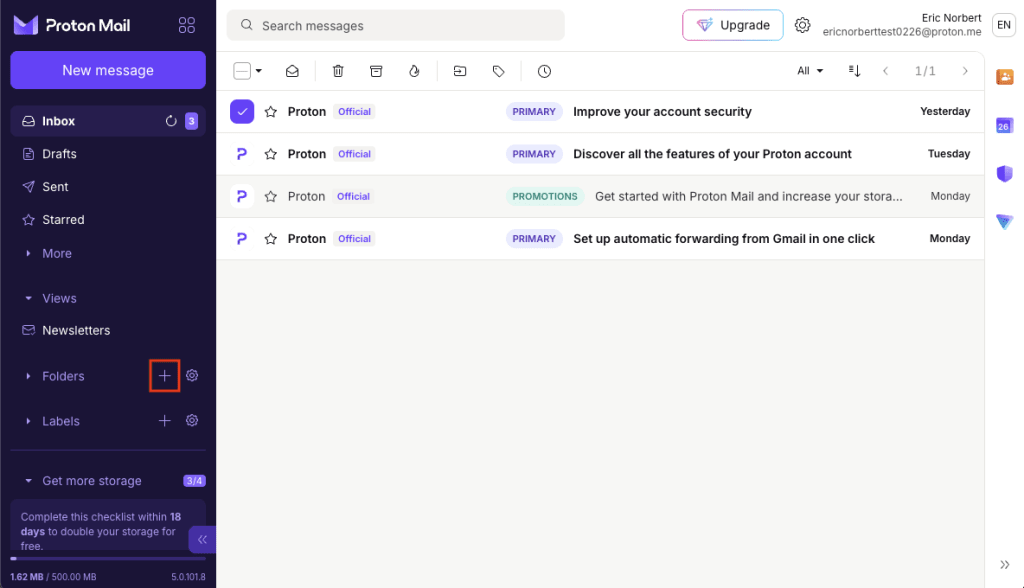
From here you can:
- Add a new folder
- Select parent folders
- Add a color
- Enable or disable notifications for new messages in a folder
You can configure more advanced options in your account settings:
- Open your Proton Mail inbox. Click Settings (⛭) > All Settings.
- Select Folders and labels from the sidebar.
- Go to Folders.
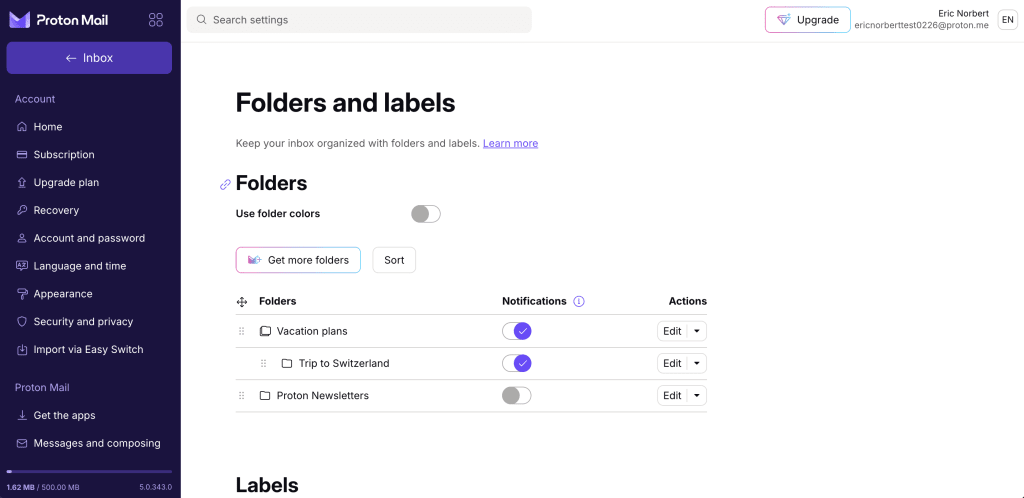
From here you can:
- Add new folders
- Select parent folders
- Set up colors for folders and choose whether sub-folders inherit the color of the parent folder
- Enable or disable notifications for new messages in a folder
- Delete or edit folders
Mobile apps (Android, iOS)
- Open the settings drawer.

2. Tap Create a folder.

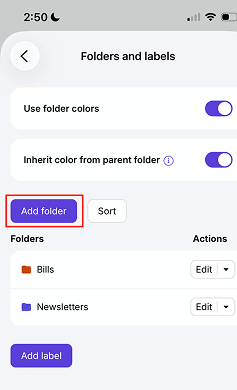
From here you can:
- Add new folders
- Select parent folders
- Set up colors for folders and choose whether sub-folders inherit the color of the parent folder
- Enable or disable notifications for new messages in a folder
- Delete or edit folders
Labels
Labels are tags you can add to messages to make them easier to find or to apply filters to.
Adding a label to a message doesn’t change which folder the message is in, and you can add multiple labels to a message.
If you delete a message from its folder, that message will also lose all labels associated with it.
Create and manage labels
Web and desktop apps
- Open your inbox.
- In the left sidebar, go to Labels and click the + icon.

3. Give your label a name and color. Click Save when you’re done.

You can manage existing labels in your account settings:
- Open your Proton Mail inbox. Click Settings (⛭) > All Settings.
- Select Folders and labels from the sidebar.
- Scroll to Labels.
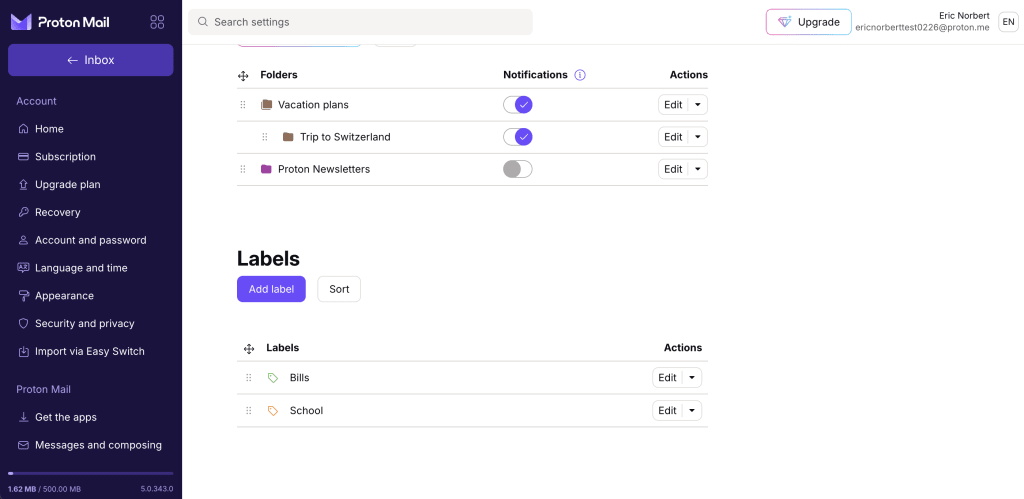
From here you can:
- Name your label
- Assign it a color
- Edit or delete labels
Mobile apps (iOS, Android)
- Open the settings drawer.
2. Tap Create a label.


From here you can:
- Create and name your label
- Assign a color to your label
- Edit and delete existing labels
Add labels to a message
- Open your inbox (or any other folder).
- Check the messages you want to add a label to.
- Click the Label icon in the toolbar.
- Select one or more labels from the list. You can add as many labels as you like.
- Click Apply to confirm.

- Check Also archive to move the message from your Inbox to your Archive folder.
- Check Always label sender’s emails to add the same label (or labels) to all new emails from this sender.